Prototyping kit
Learn how to access and use the Figma prototyping kit for your designs.
About the prototyping kit
The Ontario Design System prototyping kit is a set of pre-built components and styles that you can use to design your website or application.
The prototyping kit is hosted on Figma. Figma is a design tool that you can install on your computer or use in your web browser. It can be used to create:
- mockups of user interfaces
- prototypes for usability testing
If you’re new to using Figma, check out our list of Figma help and tutorials.
Access the prototyping kit
To access the Figma prototyping kit:
- Create a Figma account if you don’t have one already.
- Check whether the latest version of the prototyping kit has already been published as a team library (someone on your team may have done this already).
- If the prototyping kit isn’t available or needs updating, visit the Ontario Design System Library and follow the setup instructions.
- If you already have access to the prototyping kit, move on to installing the Ontario Design System fonts.
- When a new version of the library is available, publish the updated version. If you’d like, you can also swap your existing library with the latest version.
Install the design system fonts
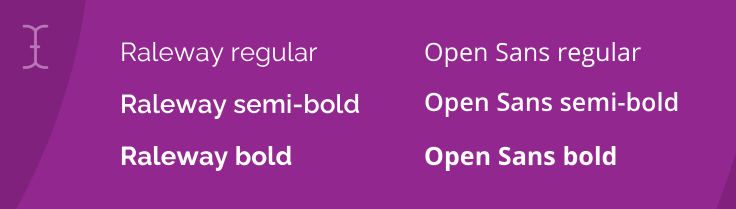
The Ontario Design System primarily uses two font sets: Open Sans and Raleway modified. You need to install the fonts in order to use the prototyping kit. To do this:
- Download the Ontario Design System fonts.
- Install the fonts on Windows or Mac.
- If you’re using the desktop app, you can use the fonts right away. If you’re using Figma in your browser, you must download the Figma font installer.
Learn more about fonts and typography.
Add the grid to your project
The grid system is a fundamental part of your design frame. It divides the page into columns and provides structure to your design.
It helps you align components to specific breakpoints (such as desktop, tablet or mobile) and helps the developers you’re working with know what to code for the different devices.
By using the grid, you can be sure that you’re starting from the default Ontario Design System canvas. To add the grid:
- Create a new frame or click on an existing frame in your document where you would like to apply the grid style.
- Add the prototyping kit to your design file. On the right sidebar, select the four-dot icon in the “Layout Grid” section.
- You should see desktop/tablet/mobile grid breakpoints available.
- Select the desired breakpoint and drag it over to your frame.
Using the prototyping kit
Once you’ve set up the prototyping kit, installed the fonts and added the grid to your frame, you’re ready to start building prototypes.
Start building by dragging and dropping components onto your frame. To do this:
- Make sure you’ve added the library to your design file.
- Select the “Assets” tab in the left sidebar.
- Select the Ontario Design System UI prototyping kit dropdown to reveal all the available components.
- Once you’ve found your desired component, drag and drop it into your Figma frame.
Tips
Browse for components by using the search bar
If you have other libraries added, they will also appear in your search. We recommend turning off the other libraries to make sure you’re only looking at the prototyping kit components.
Change the way components are shown in the library
The default is “Show as grid.” Toggle it to “Show as list” and it will show you the components as a list.
Change a component’s properties directly in your frame
After you’ve dropped a component into your frame, you can change its properties (such as interaction state) directly in the properties panel.
Figma page templates
The Ontario Design System Figma page templates provide designers with pre-built, customizable templates to make the page creation process more efficient and consistent. Each template uses auto layout components that resize dynamically as content changes so you can easily add your own content into the template.
To use them:
- Copy the frame into your project.
- Add or remove components as needed to fit your design.
Additional page templates are being created to make designing even more efficient.
Figma help and tutorials
Here are some links to help you learn the basics of Figma:
- create an account
- browser requirements
- configure your browser for Figma
- Figma canvas
- working offline
These in-situ demonstrations can help you get familiar with Figma:
Other design tools
The Ontario Design System uses Figma because:
- the free version is available
- the app is available on Windows or Mac, or it can be used in your browser if you don’t have permission to install software
The prototyping kit is not available for Adobe XD, Axure or Sketch.
If you have any questions or feedback, please get in touch.